


Get started with Mili + Zoom
How it works

Webinar
Frequently Asked Questions
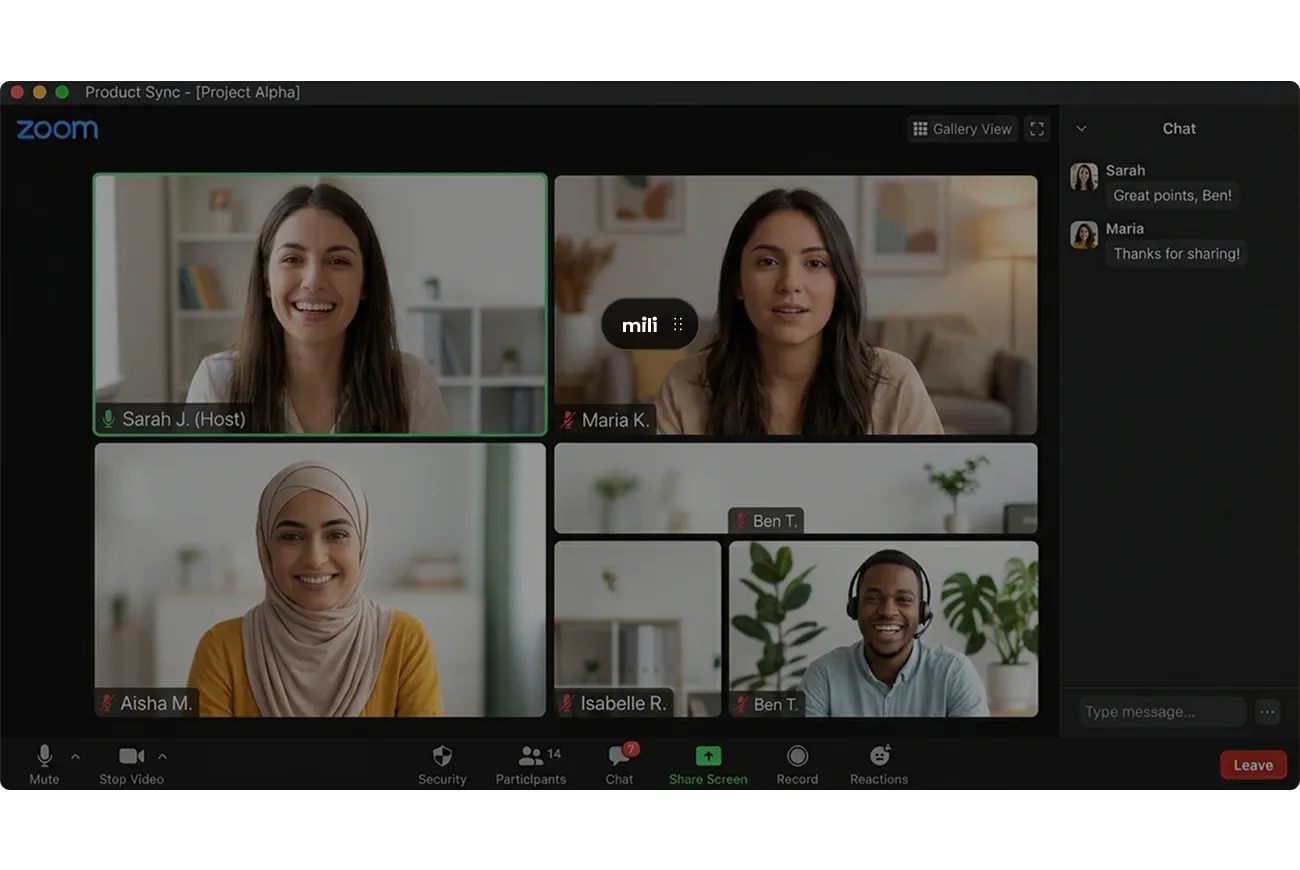
No. Mili never joins your Zoom call. No bot appears in the participant list. Mili runs on your device (desktop, laptop, mobile) and listens through the microphone and speaker - the same ones already carrying your conversation. Think of it like having a brilliant assistant sitting behind you, taking notes from what they hear.
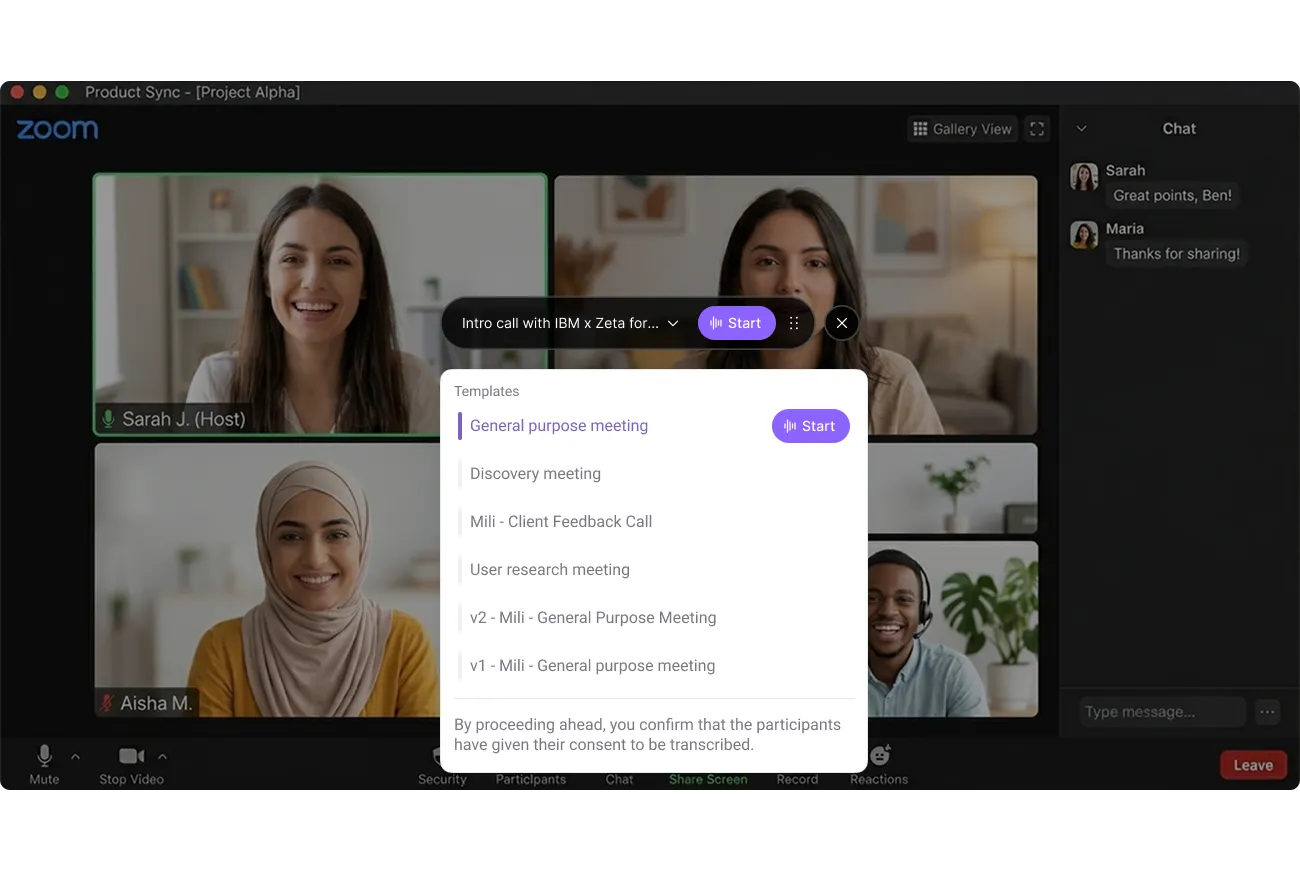
No. Mili doesn't need access to your Zoom account. It works independently through your device's hardware. There's nothing to install in Zoom, no permissions to grant, and no IT admin approval needed for Zoom specifically. Just open Mili alongside your Zoom call and hit “Start”.
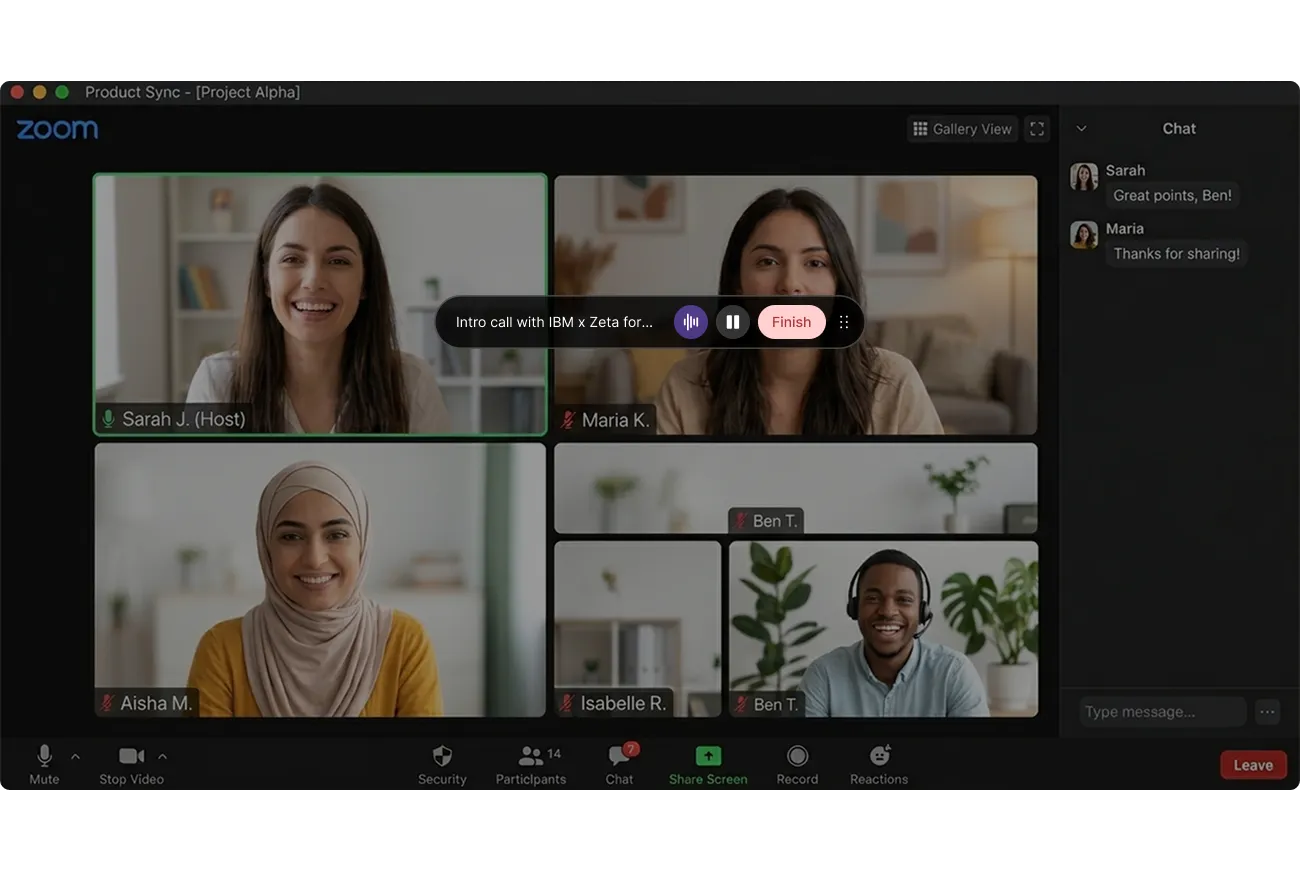
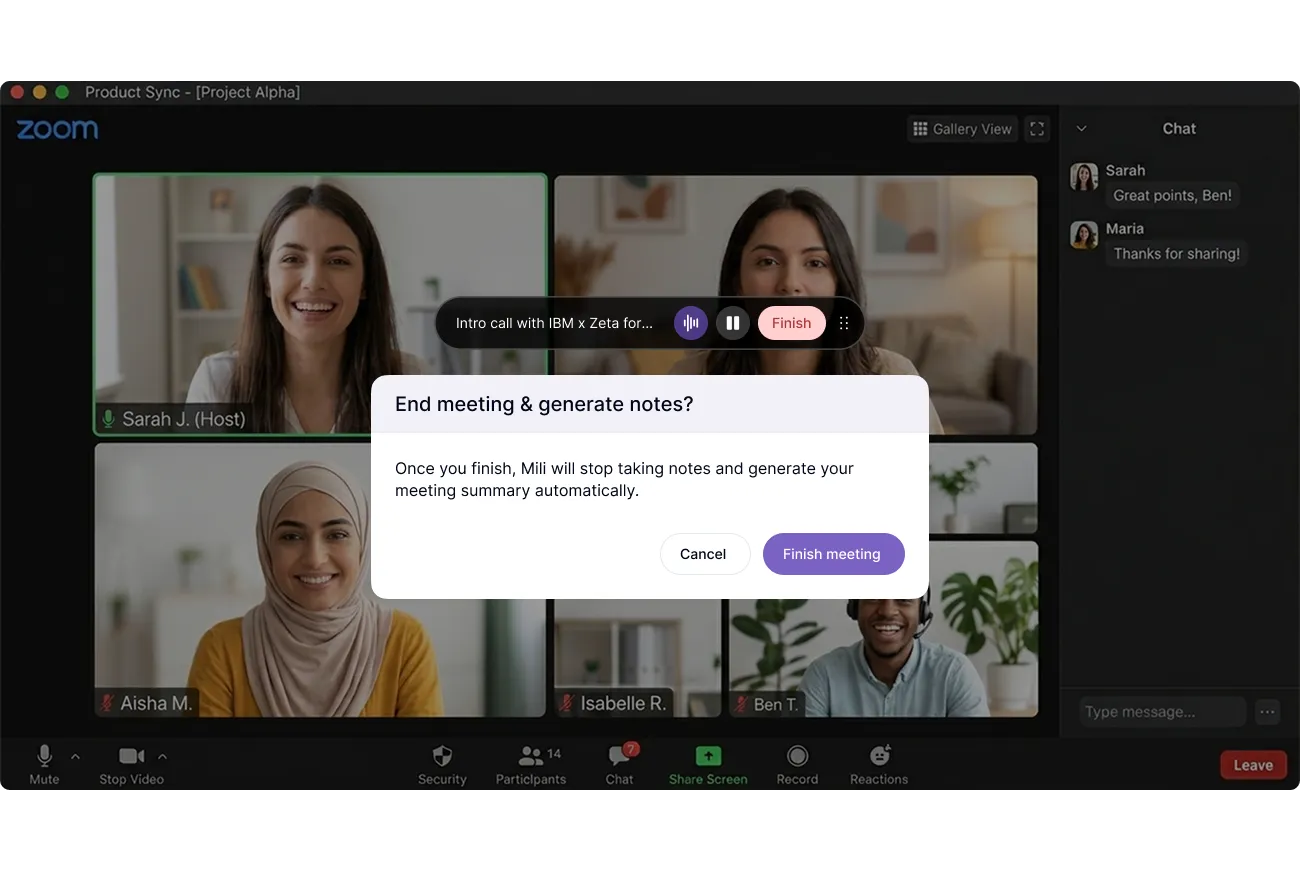
Not at all. Once you hit Start, go right back to your Zoom call and focus on your client. Mili works entirely in the background. You'll see a small persistent overlay with a soundwave indicator on your screen - that's your confirmation that note-taking is active. You don't need to look at it, switch tabs, or check on Mili at any point during the meeting.
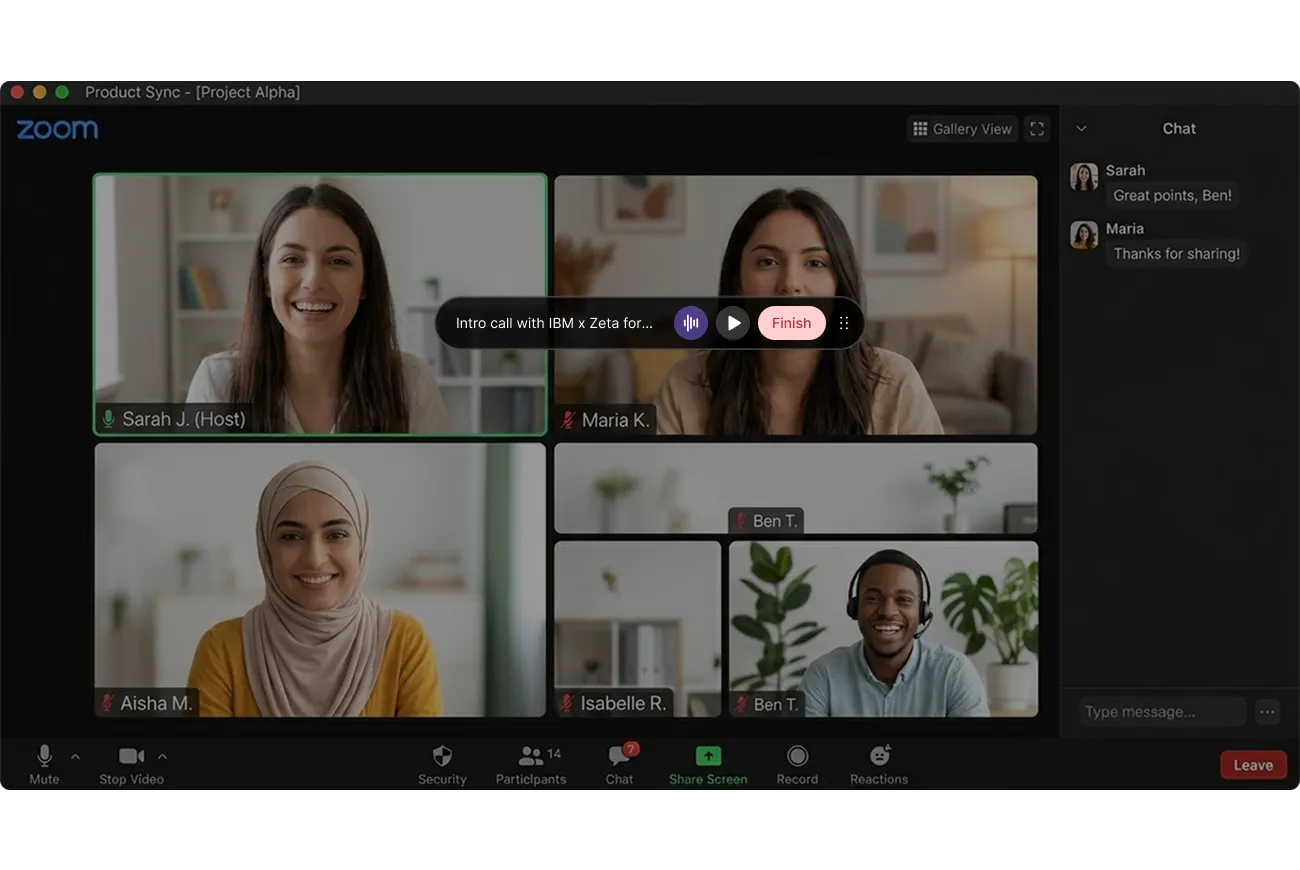
Yes. You can pause and resume anytime. Either click the pause button on the persistent overlay (the small floating widget on your screen) or open the Mili app to pause from there. This is useful when you need a private moment or want to step off-topic. When you're ready, hit resume, and Mili picks up right where you left off.
Nothing changes on Mili's end. Because Mili listens through your device - not through Zoom's system - it works the same way whether you're on Zoom, Google Meet, Microsoft Teams, Webex, or even a regular phone call. If you switch platforms tomorrow, Mili still works exactly the same.
Yes. Because Mili listens through your device's microphone, it works just as well for face-to-face conversations. Set your laptop or phone nearby and start Mili. It captures the conversation the same way it does during a Zoom call.
Mili captures your voice through your device's microphone and your client's voice through your device's speaker. It's designed to pick up both sides clearly - the same way you hear them during the call. For Zoom calls specifically, the audio quality tends to be excellent because the audio is already clean and digital.
Before you hit Start, Mili asks you to confirm that you have the client's consent. Every single time, no skipping it. That confirmation is logged with a timestamp, by client and by date. So if your compliance team ever asks, it's right there.
