

Get started with Mili + OneNote
How it works

Webinar
Frequently Asked Questions
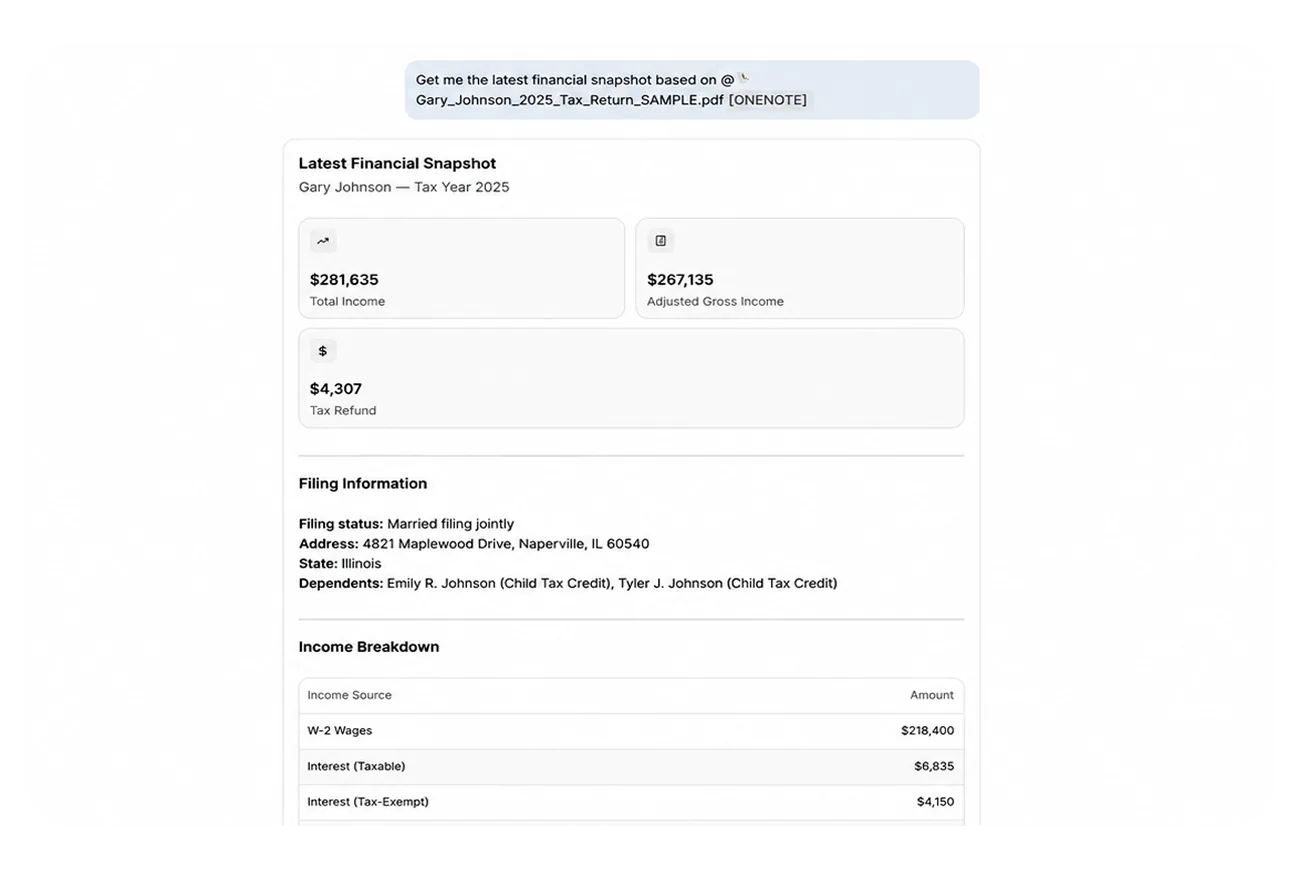
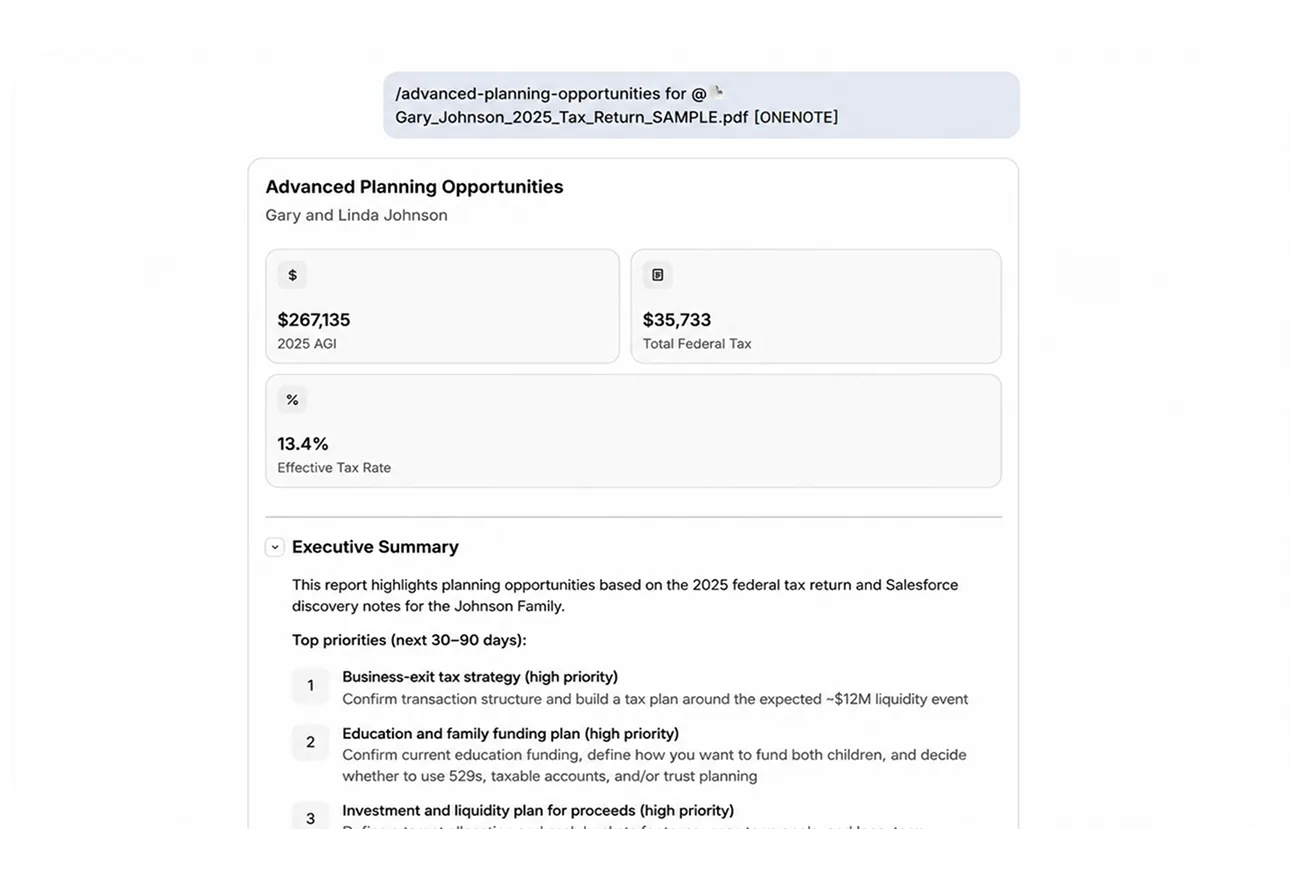
Pull your client notes into meeting prep. Ask what you captured in last quarter's review. Run planning skills using the notebook you keep per client. Just type @ and pick the notebook, section, or page, no copying, no switching tabs.
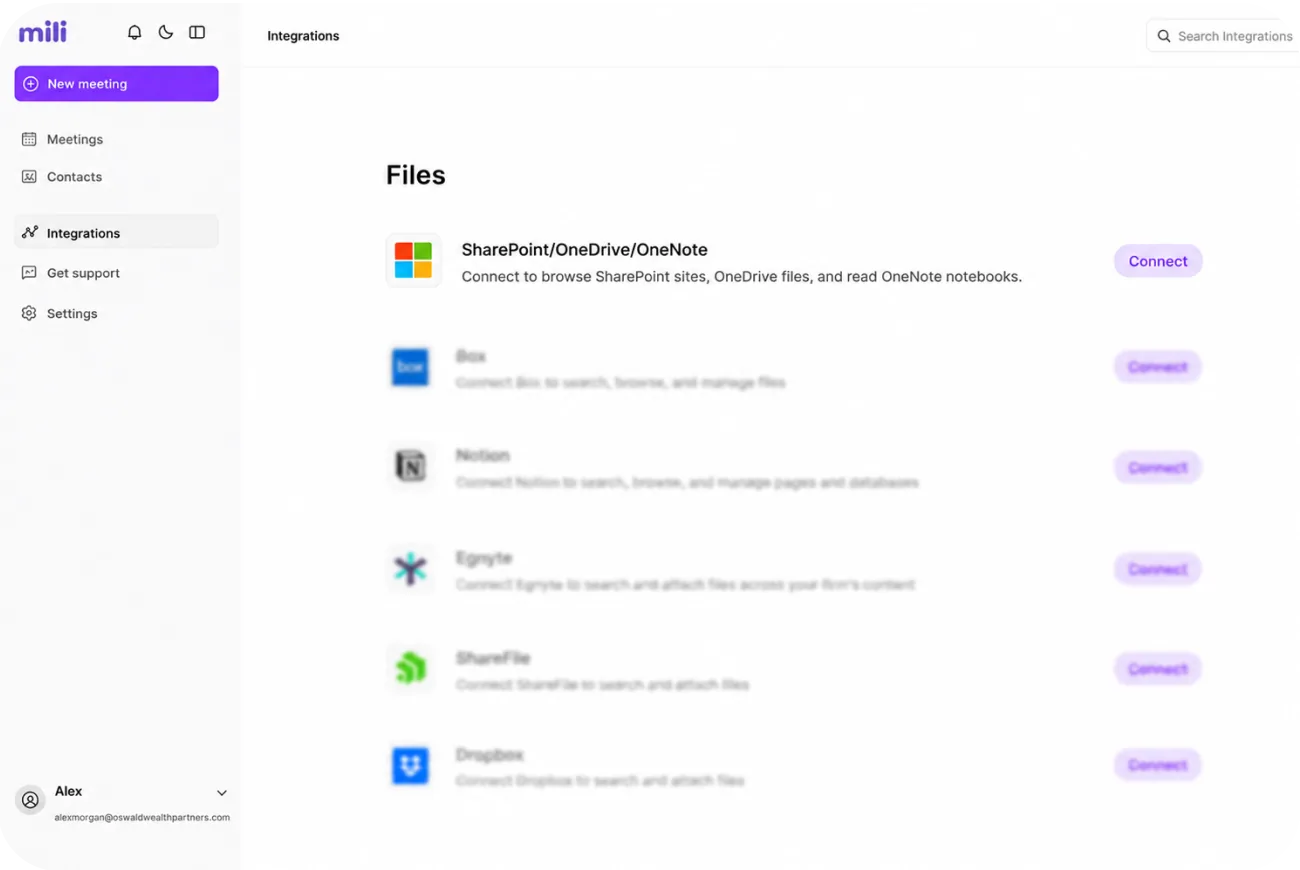
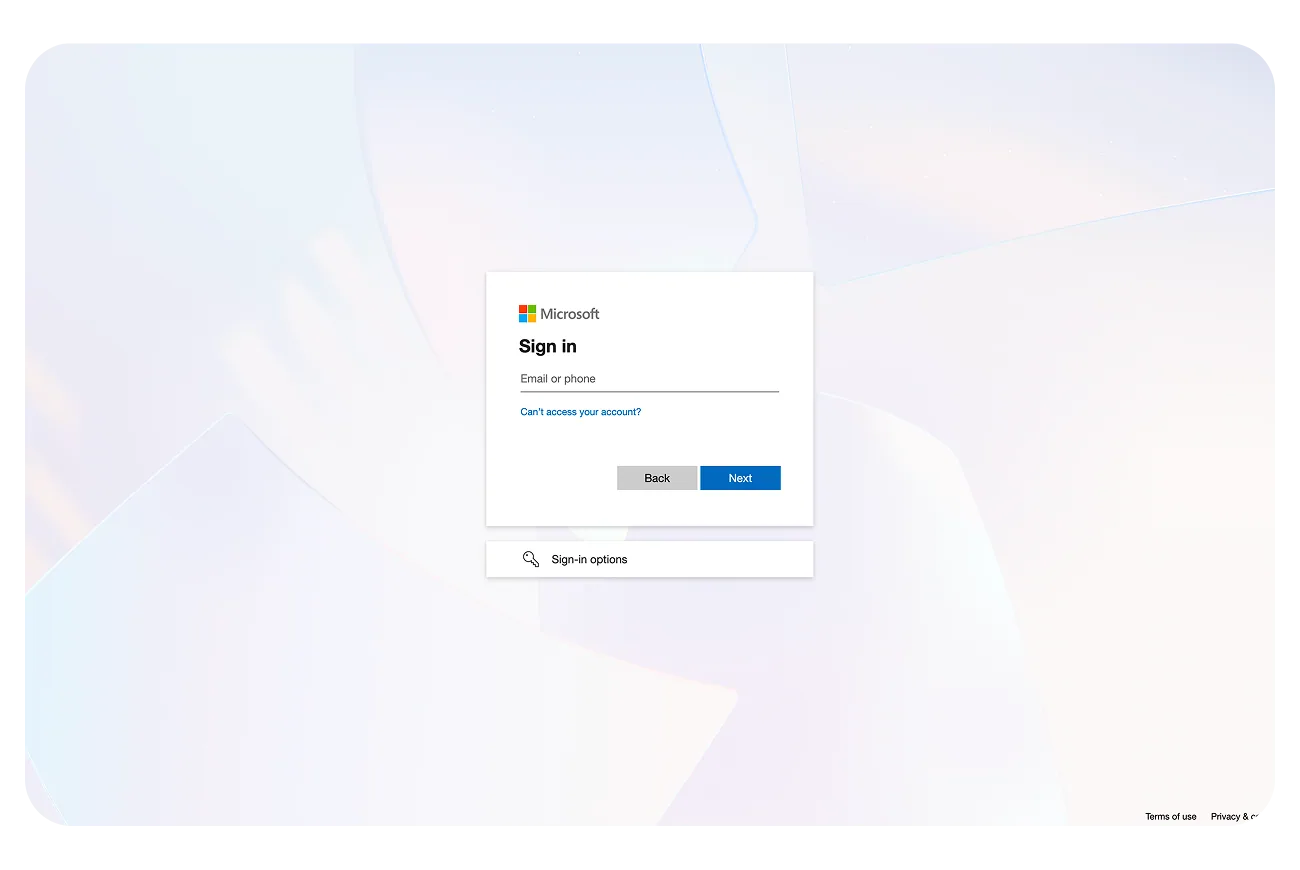
No. It's one Microsoft connection. Connect once and OneNote, SharePoint, and OneDrive all work in Mili.
Mili signs in as you, so it only sees the notebooks you can already open, including shared team notebooks if you have access.
No. Mili reads your OneNote notebooks, it never edits, adds to, or deletes anything in them. Your notes stay exactly as you wrote them.
No. Everything stays in OneNote. Mili reads a page only when you ask for it in a request, nothing gets saved on Mili's side, and there's no background scanning.
Yes. Connect Box, Dropbox, and Mili's other supported document stores alongside OneNote. You can even mix them in a single request, like pairing a Salesforce contact with a OneNote page for meeting prep.
Every answer in Mili Office comes with source links, so you can see exactly which page or record it came from and check it yourself.
