


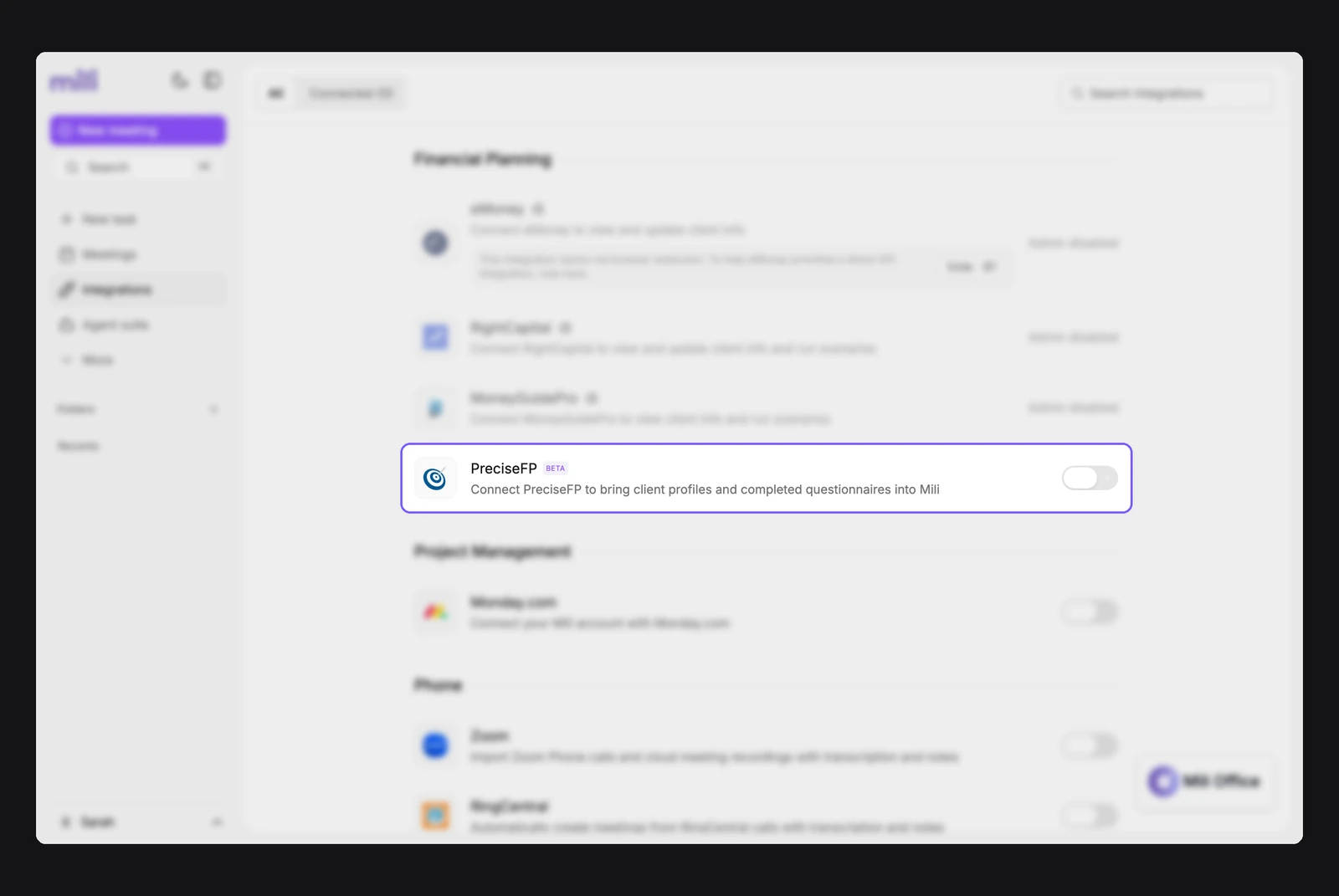
Get started with Mili + PreciseFP
How it works

Webinar
Frequently Asked Questions
A PreciseFP paid plan with API access turned on for your firm. If your firm doesn't have API access yet, contact PreciseFP support.
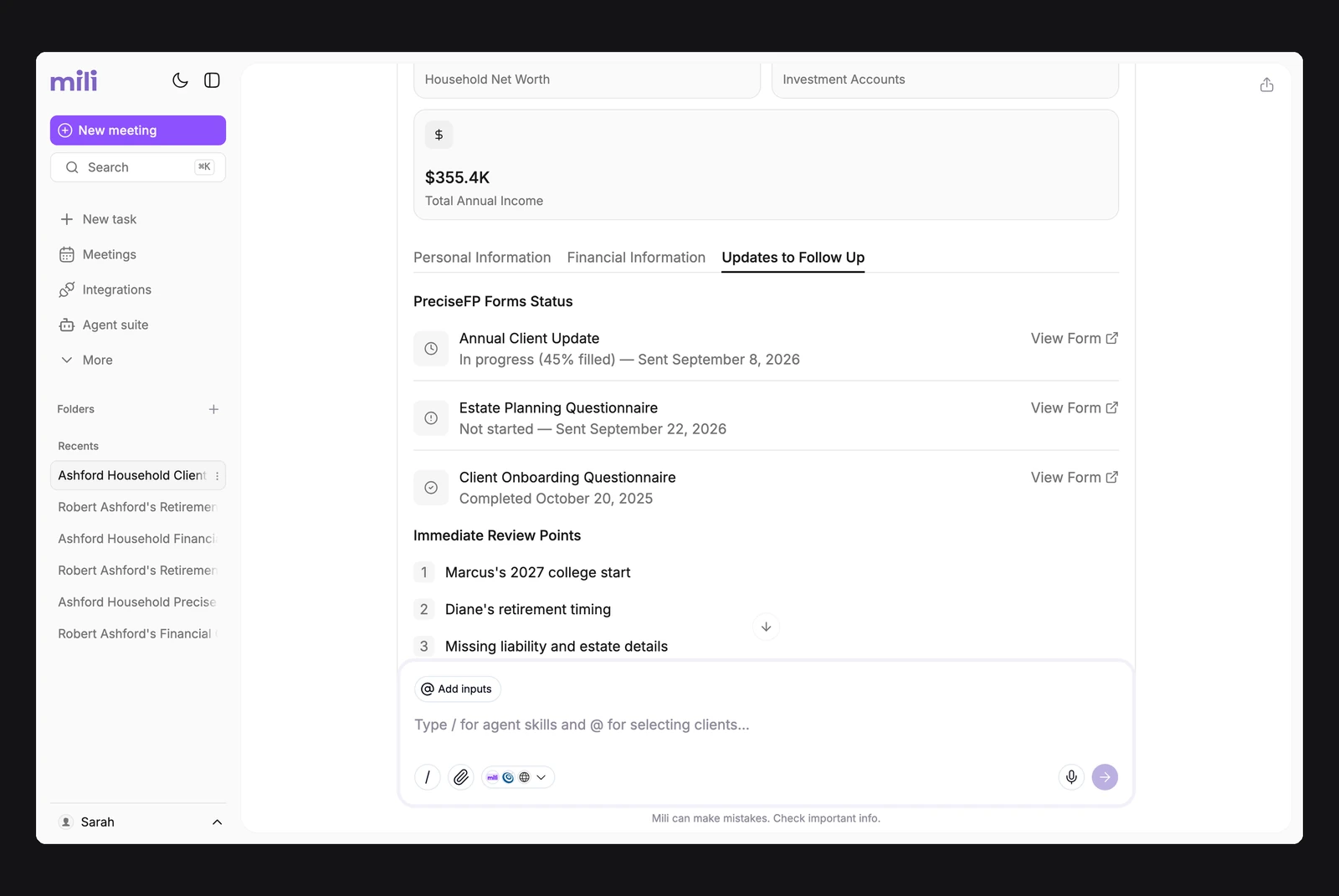
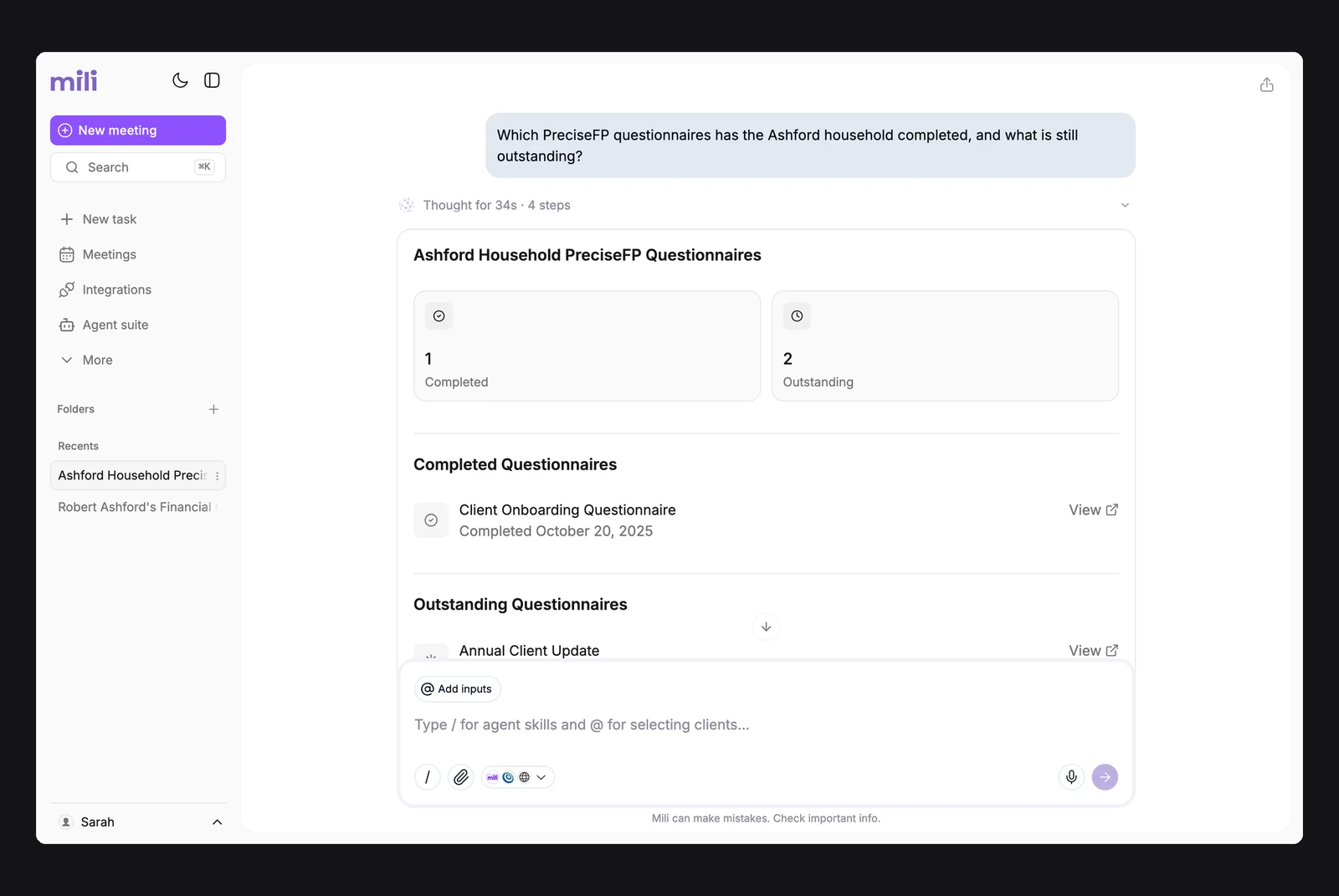
Client profiles, household members and dependants, secondary contacts, questionnaire status and answers, form templates, PDF forms waiting for signature, recent activity, and files clients uploaded. Mili labels each household member's answers, so your client's and their spouse's details stay separate.
Yes. Just ask in a chat, like "Send the Smiths our annual review questionnaire." Mili finds the right form and the right client, and shows you both before anything goes out. You approve, and it's sent from PreciseFP. Once the client fills it in, Mili uses their answers in meeting prep, snapshots and planning.
Meeting prep, client snapshots, mind maps, client review decks, client Excel exports, and planning opportunities. Tax, estate, insurance, education, divorce, marriage and family planning skills use it too.
Yes. One request can look at up to 6 PreciseFP clients. If two clients share a name, Mili lists them and asks which one you mean.
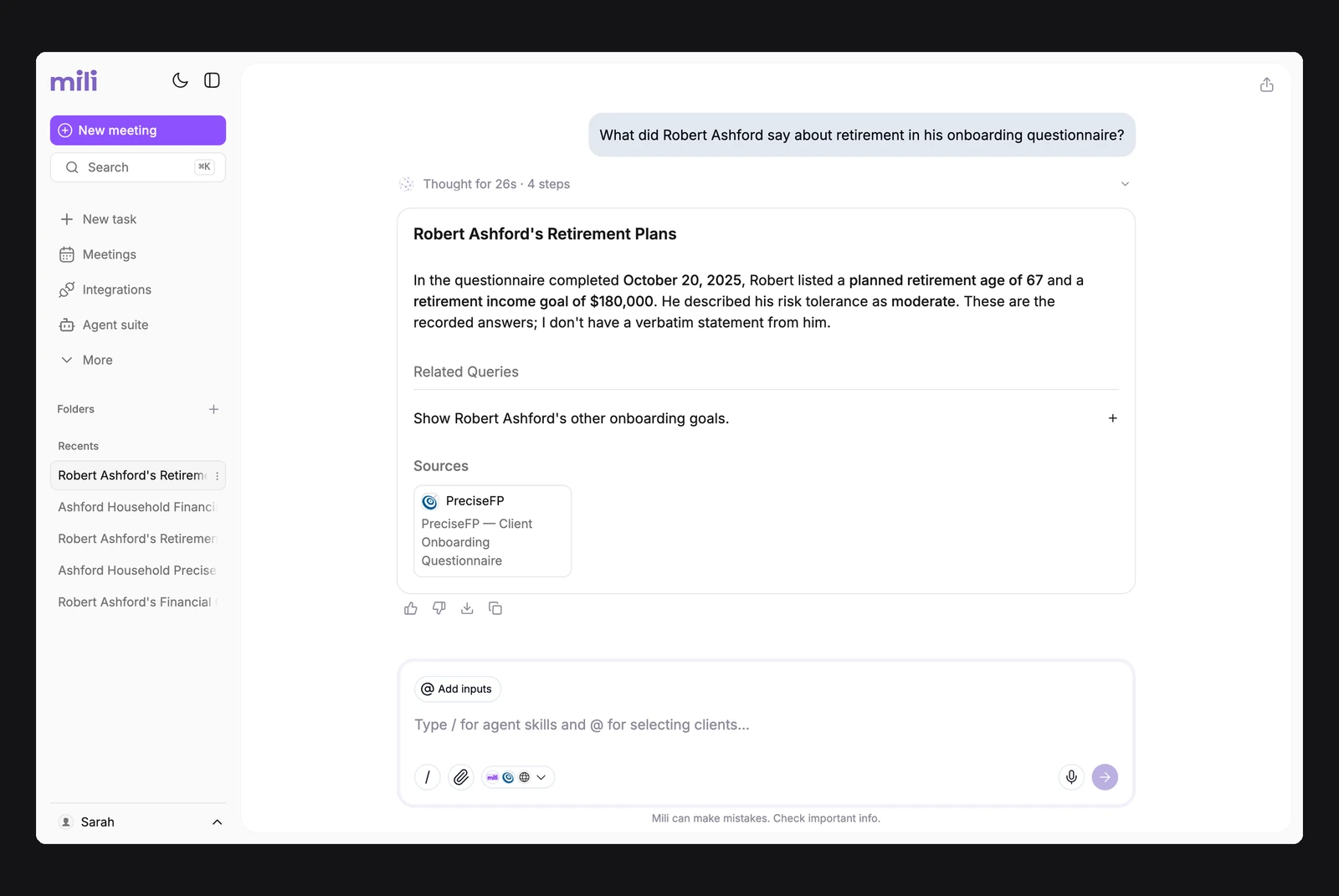
Every answer in Mili Office includes source links showing exactly where the information came from. This grounding approach enables you to verify key outputs and reduces the risk of AI hallucinations.
Go to Integrations → PreciseFP and click Disconnect.
