


Get started with Mili + Holistiplan
How it works

Webinar
Frequently Asked Questions
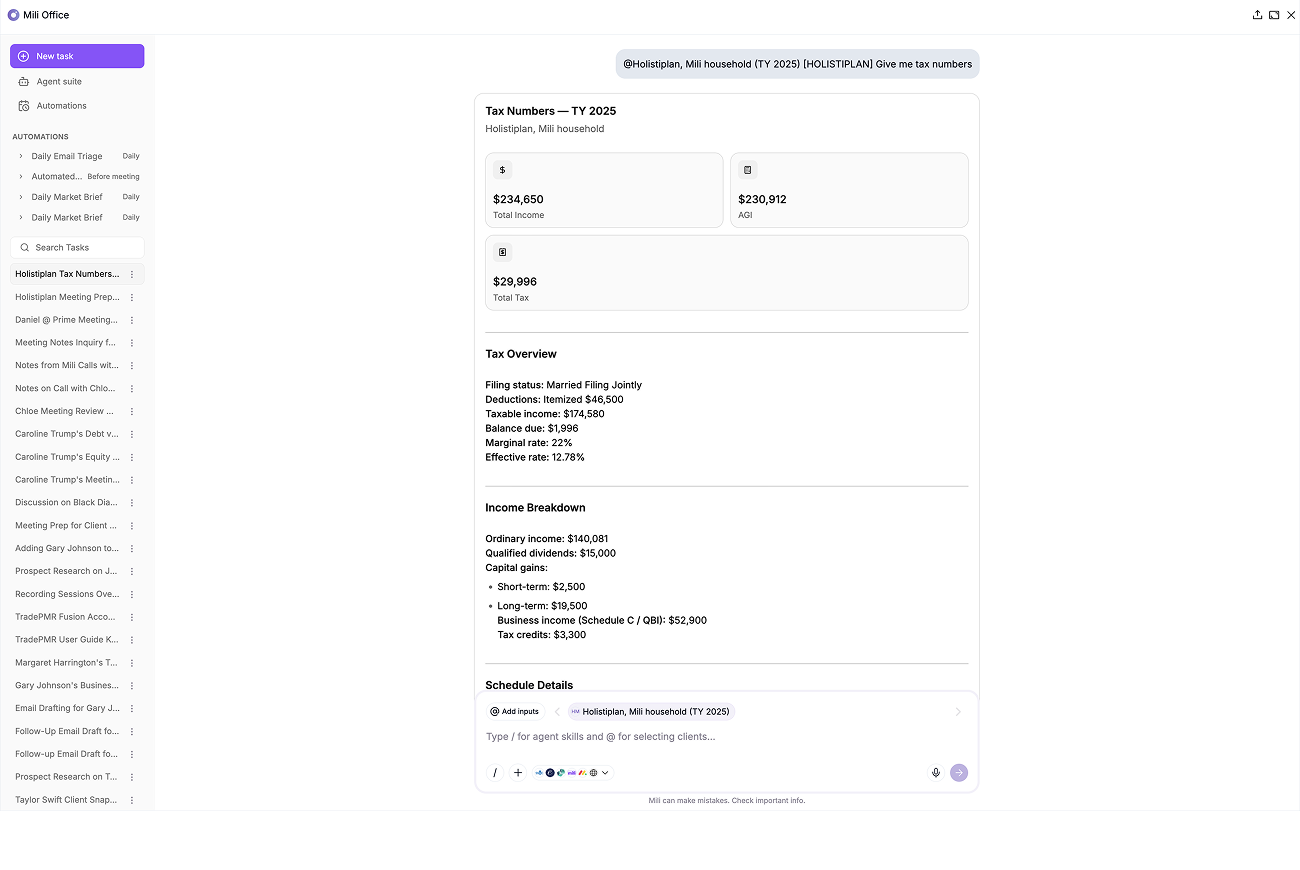
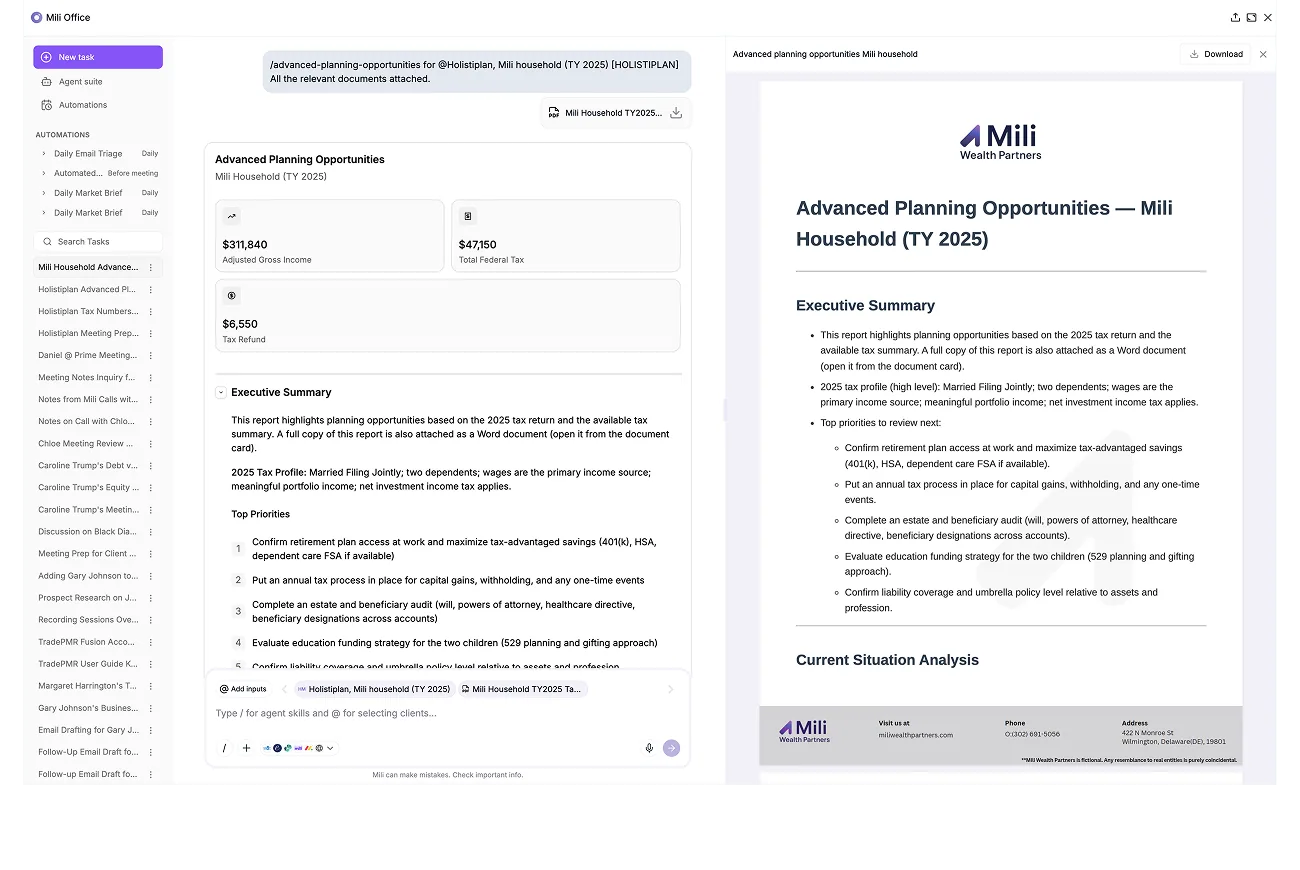
When you @-mention a Holistiplan household or pick one in meeting prep, Mili reads the tax details and folds them into your notes, prep briefs, and planning skills. It's read-only, the data flows from Holistiplan into Mili for context, never the other way.
No. Mili only reads. It never edits returns, changes scenarios, or writes notes back. Holistiplan stays your system of record.
Filing status, AGI, taxable income, total tax, and marginal bracket by year, plus which return years are on file and their status, your scenario names, and recent household activity. Ask a specific question and Mili can also pull tax reports, tax letter status, PDF snapshots, and Roth projections. A few things it can't read today: Household Notes from the Holistiplan app, dependent details, and notes typed only into a scenario field.
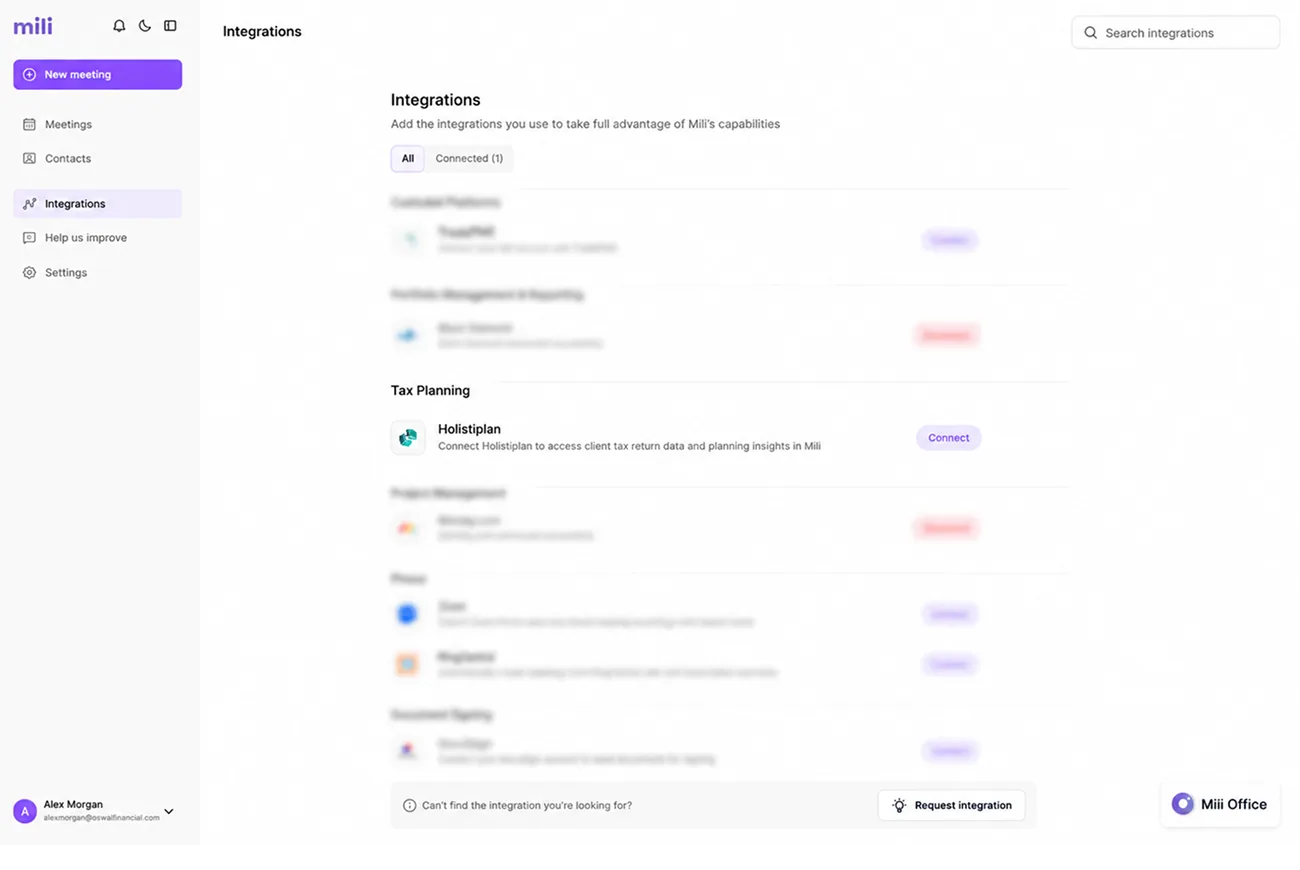
Three quick steps. First, your Holistiplan firm admin enables the Mili tile in Holistiplan under Settings → Integrations. Next, your Mili org admin makes sure Holistiplan is checked under Admin settings → Meeting controls → Integrations (it's on by default for most organizations). Then you connect: in Mili, go to Settings → Integrations, scroll to Tax Planning, find Holistiplan, click Connect, and authorize access. If the connection fails, it's almost always the first step, check that your Holistiplan firm admin enabled the Mili tile.
Meeting Prep, Ask About Client, Client Snapshot, Client Profile Mind Map, Advanced Planning Opportunities, and Create Client Excel, any time you @-mention Holistiplan or ask for tax data.
Every answer in Mili Office includes source links showing exactly where the information came from. This grounding approach enables you to verify key outputs and reduces the risk of AI hallucinations.
