

Get started with Mili + Google Drive
How it works

Webinar
Frequently Asked Questions
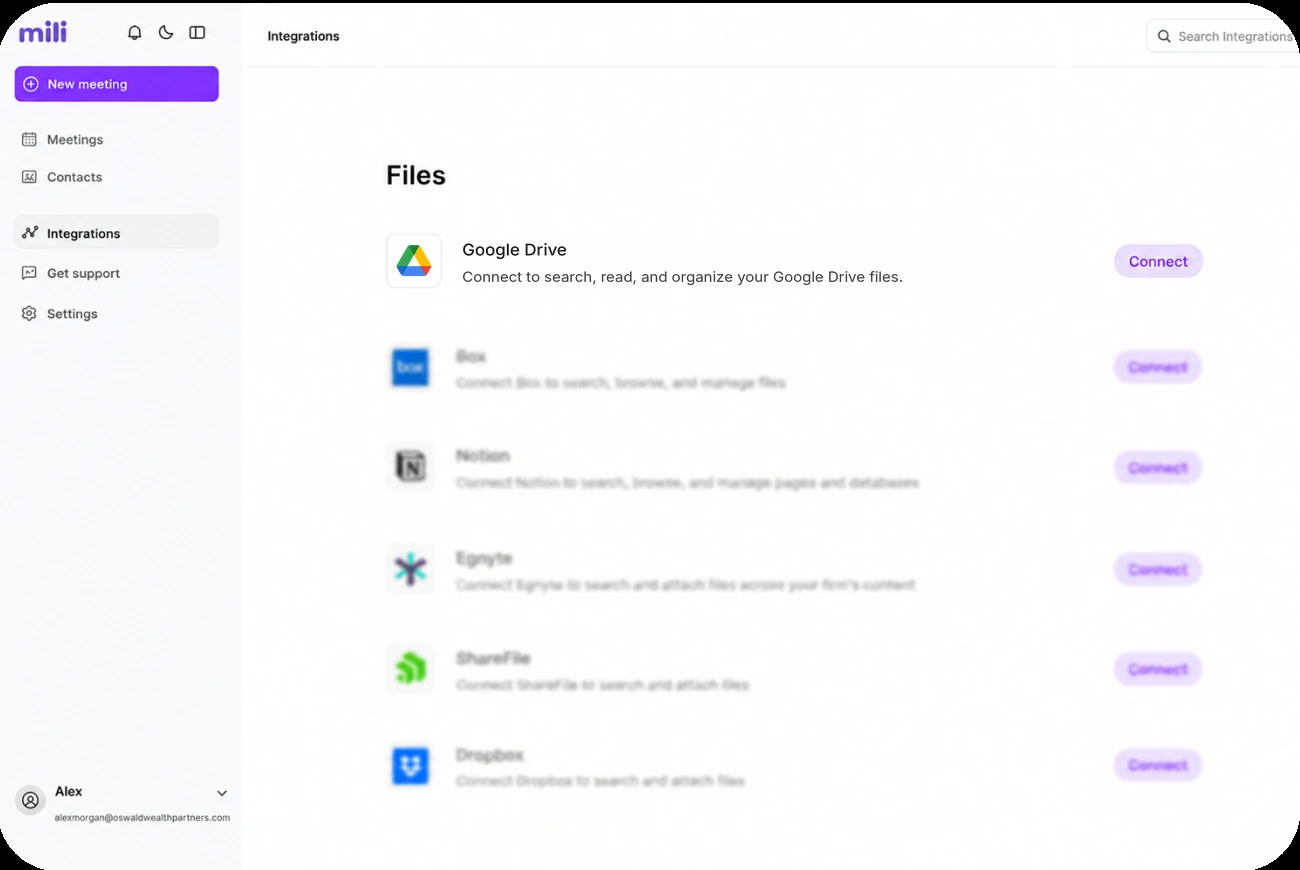
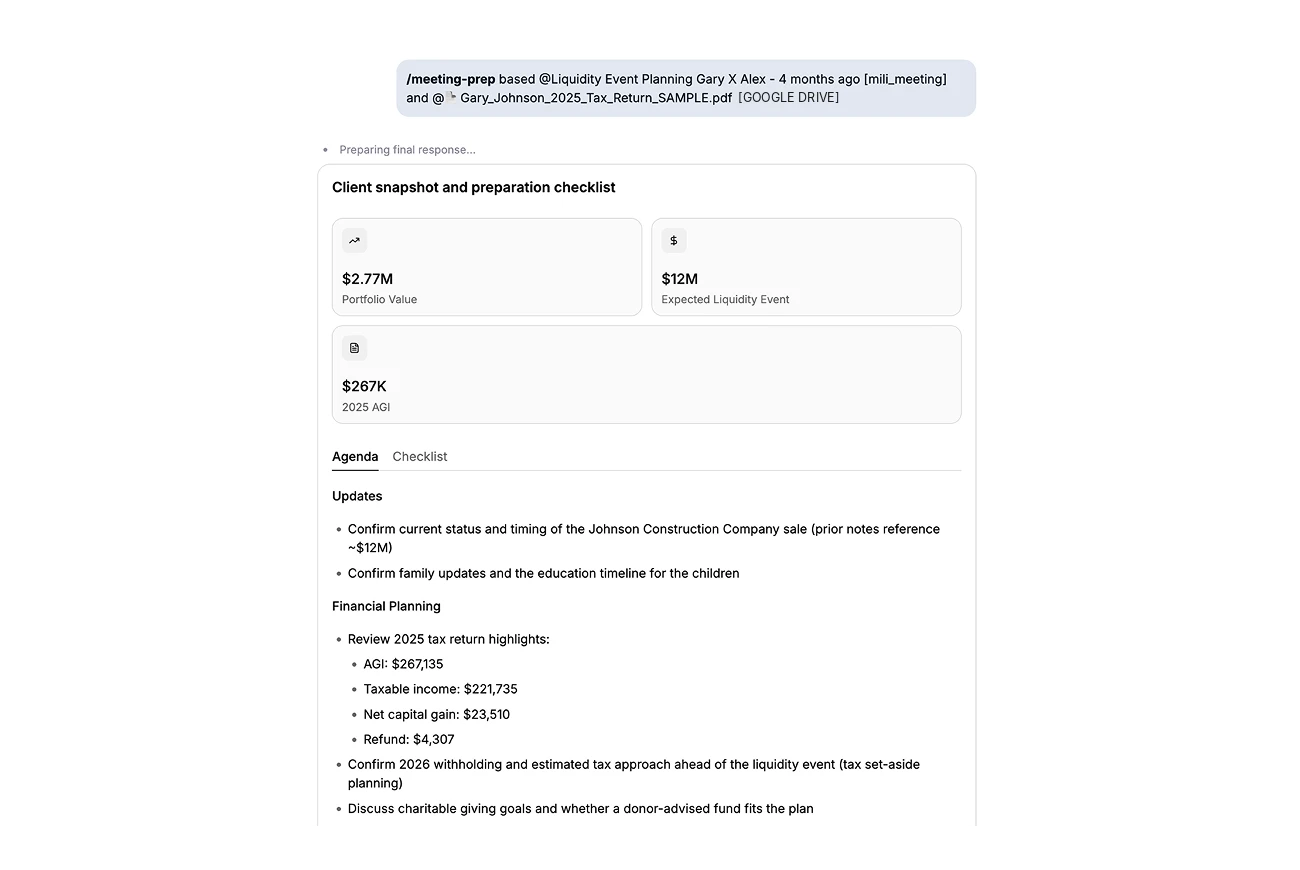
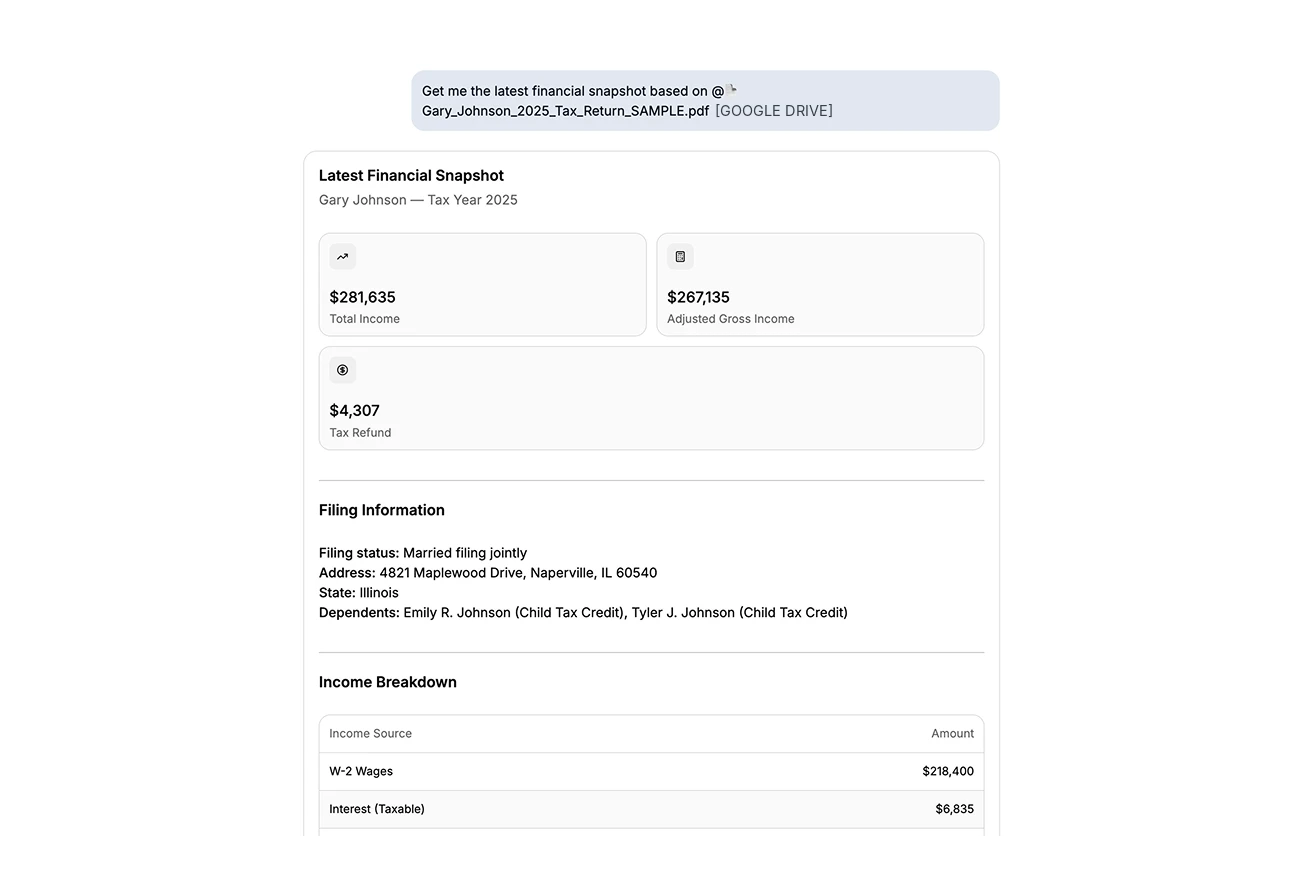
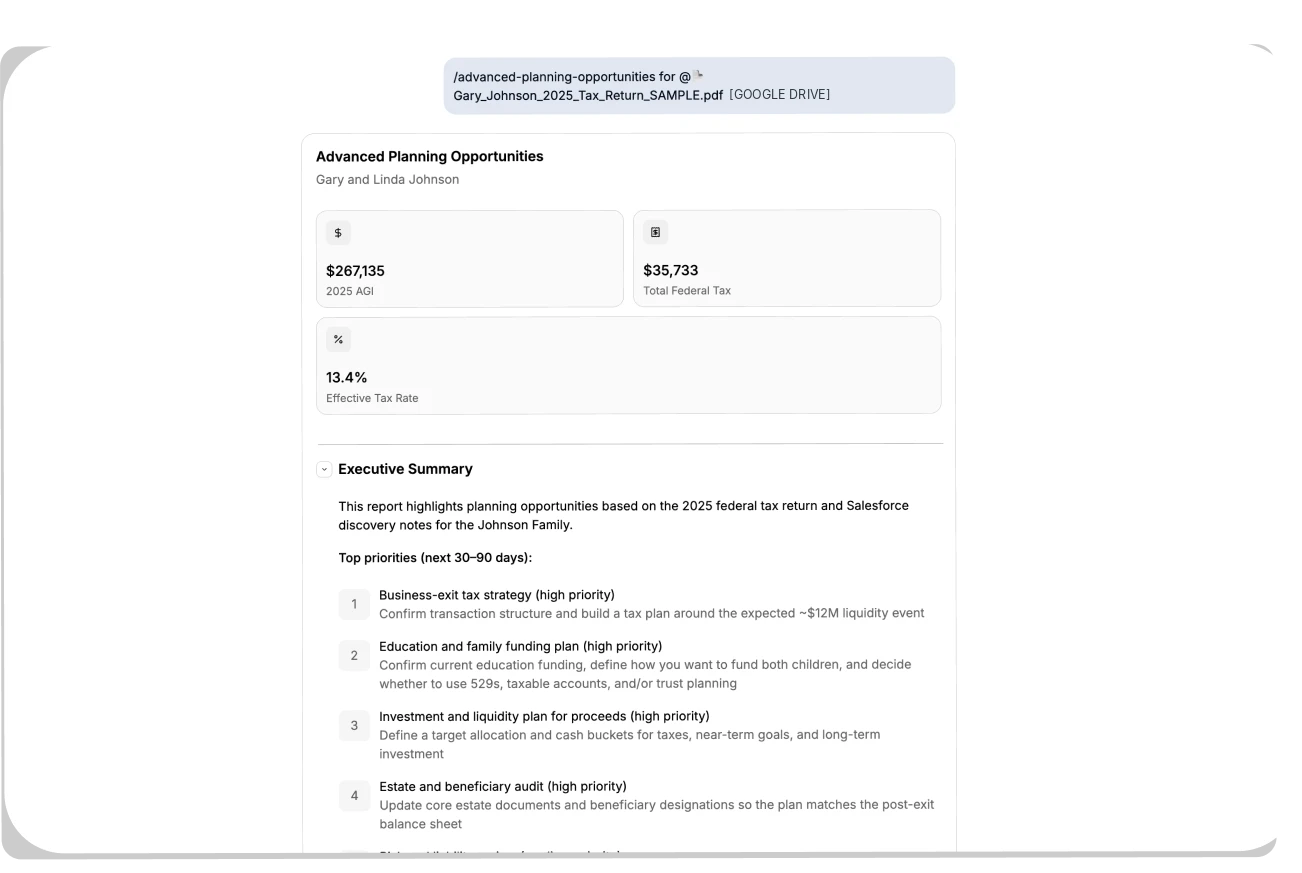
Search Drive from Mili Office and add files to any chat, meeting prep or skill. You can also just ask Mili to find a client's documents, and its answer links to each file it used. With Read & write access, Mili can keep your Drive organized too: creating folders, uploading, renaming, moving, and moving files to the trash.
Mili can see the files your Google account can open, including shared drives and files shared with you. It only reads a file when it needs it for something you asked, and it doesn't keep a copy in Mili.
No. Every change, whether creating, uploading, renaming, moving or deleting, shows an approval card first. Nothing happens until you click Approve. You can also ask for changes or reject it.
Mili moves it to your Google Drive trash after you approve. It never deletes anything permanently, and you can restore the file from the trash for 30 days.
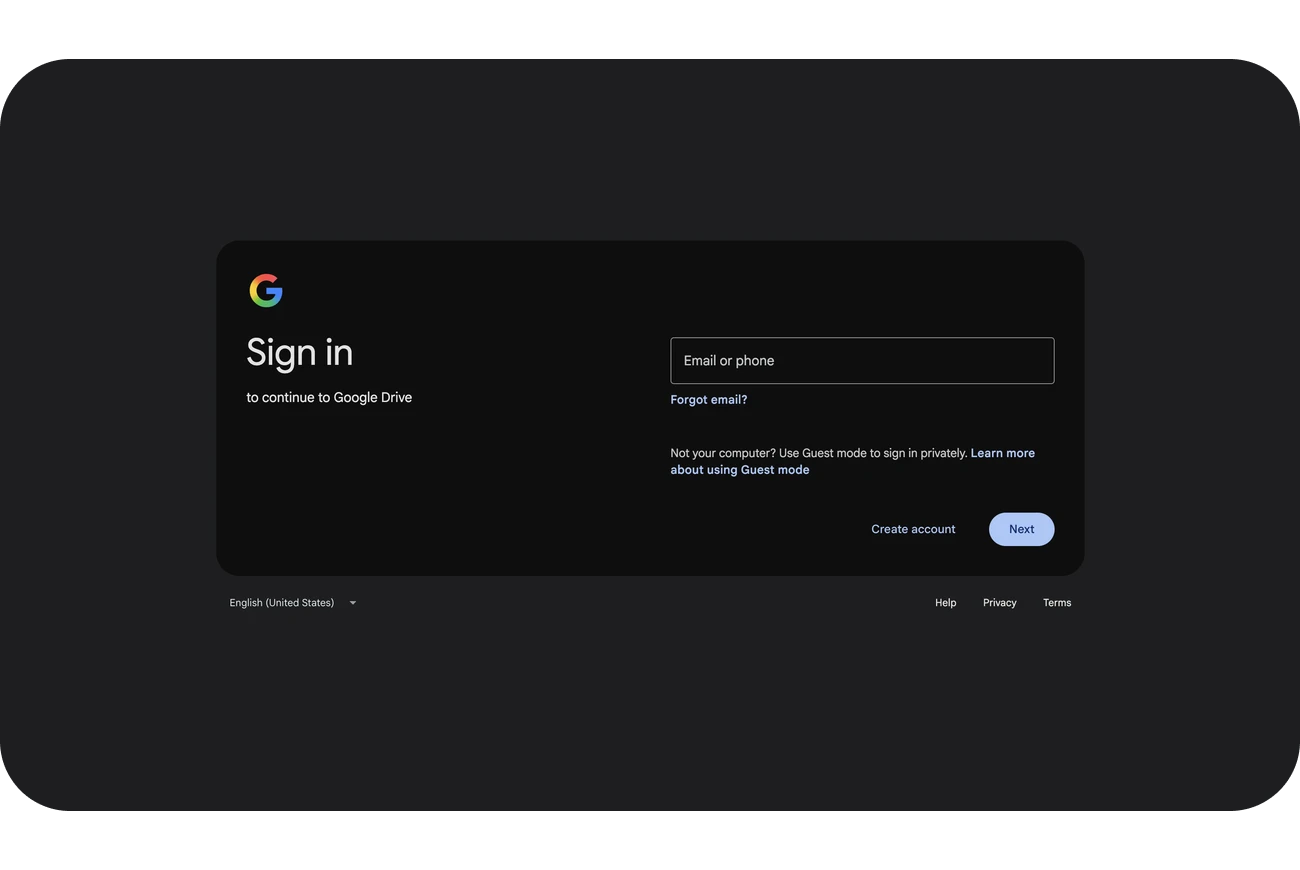
Yes. Choose Read only when you connect, or switch later from View details on the Google Drive card in Settings → Integrations. Mili can then search and read your files but can't change anything.
PDFs, Word, Excel and PowerPoint files, Google Docs, Sheets and Slides, text and CSV files, and common image formats. Files Mili can't read, like videos and audio, don't show up in search.
Yes. Searching Drive, adding files and asking Mili about them work the same in the desktop app and in your browser.
Go to Settings → Integrations and turn off Google Drive. To remove Mili's access completely, also remove Mili under third-party apps in your Google Account.
