


Get started with Mili + Hubspot
How it works
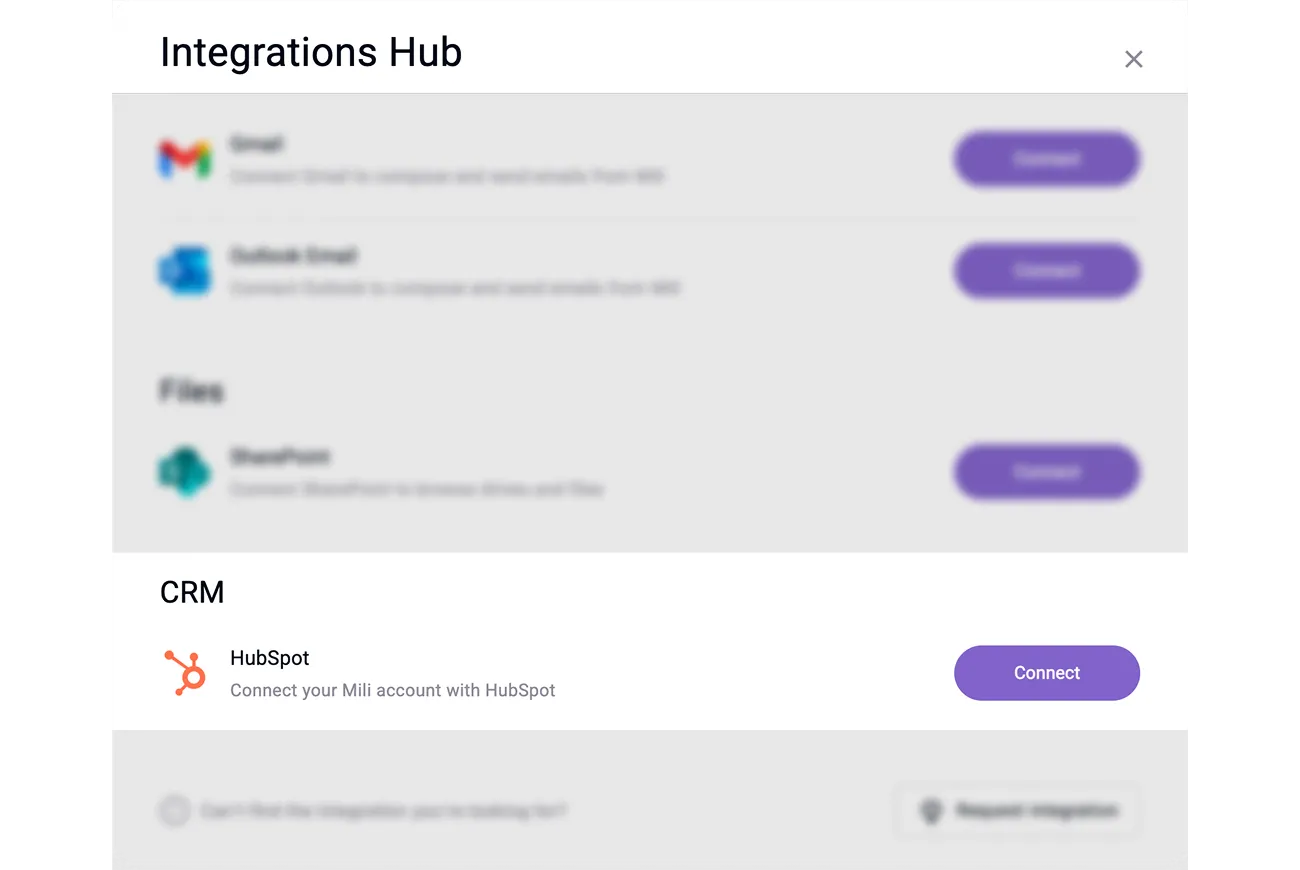

Webinar
Frequently Asked Questions
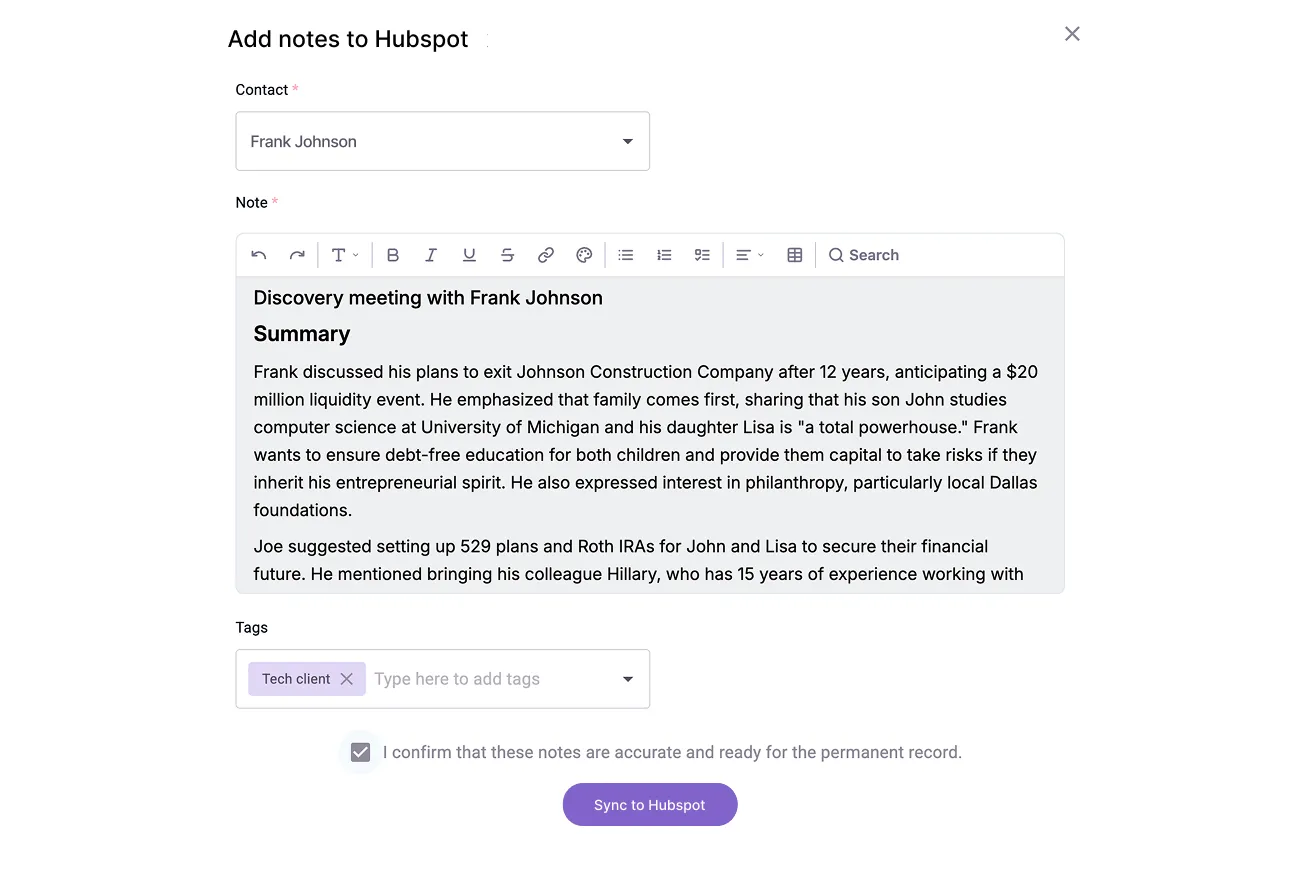
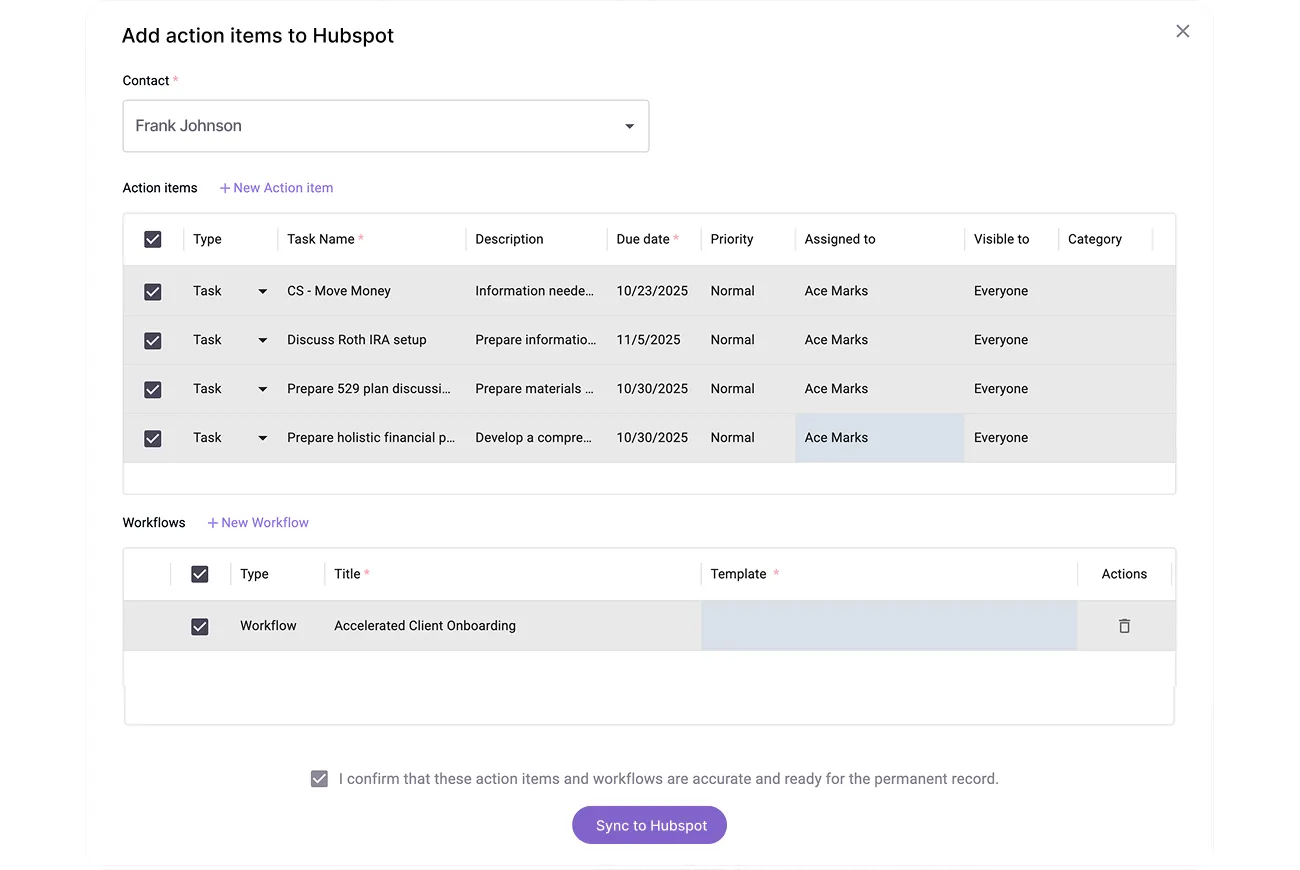
Meeting summaries capture key discussions, decisions, and next steps. Tasks sync with complete details including title, description, due date, and assigned owner. You choose which Hubspot object to attach each note or task to.
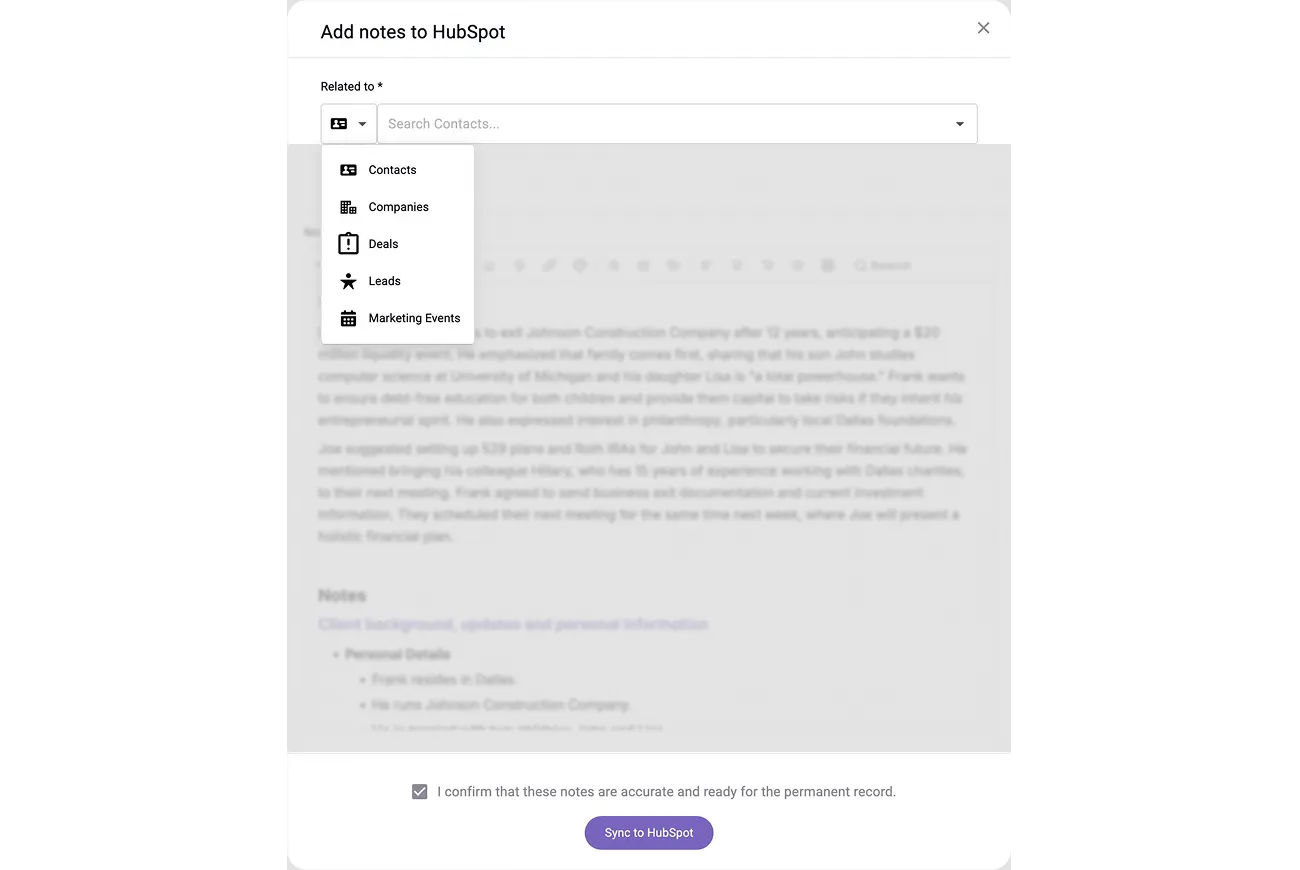
You can push to Contacts, Companies, Deals, Leads, and Events. When you sync, Mili shows exactly which destinations are available so you can select the right object for each note or task.
Every sync requires your explicit approval. You review all notes and tasks before they enter Hubspot. That means your CRM stays accurate and up to date.
At Mili, we believe in intentional data access. The integration only pulls Hubspot data when you trigger specific actions - preparing meetings, syncing notes, or making queries. Mili does not access or store client data in the background beyond regular contact syncs.
The integration matches your exact Hubspot user permissions. If you can see it in Hubspot, you can access it through Mili. Your existing security model stays intact.
Yes, your dedicated CSM will help configure which data types push to which objects, custom object mappings, and naming conventions for tasks. Email support@getmili.ai to discuss your specific Hubspot workflow requirements.
Every answer in Mili Office includes source links showing exactly where the information came from. This grounding approach enables you to verify key outputs and reduces the risk of AI hallucinations.
